
Setting up network devices on a LAN is often seen as complicated and time-consuming. But not with the FLEX Signature Series SDRs and SmartSDR™. In most cases, simply plugging your FLEX-6000 or FLEX-8000 into an available Ethernet port on the LAN at your QTH—or connecting it directly to your PC—is all it takes to establish network connectivity and get on the air.
The FLEX-6000 Signature Series radios communicate with the client application or GUI (such as SmartSDR for Windows) over a standard Ethernet local area network (LAN) using the same IP protocols that power the Internet. Because broadband Internet connectivity has made Ethernet networks nearly universal in the modern shack, chances are good that your existing LAN is already fully compatible. In many cases, your FLEX Signature Series SDR will connect and operate without any manual configuration at all—making it a truly plug-and-play experience.
Physically Connecting the FLEX-6000/FLEX-8000 to the LAN
The simplest broadband Internet-connected LAN configuration is where a broadband modem/router has only one connection to the Internet, referred to as the wide area network (WAN) port, and one LAN Ethernet port directly connected to a single PC. Refer to the diagram below.
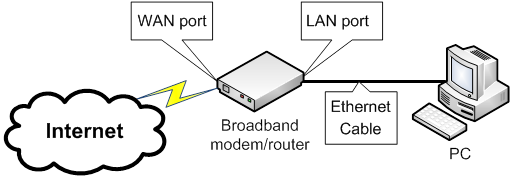
Connecting a FLEX-6000/FLEX-8000 to an Existing Ethernet LAN
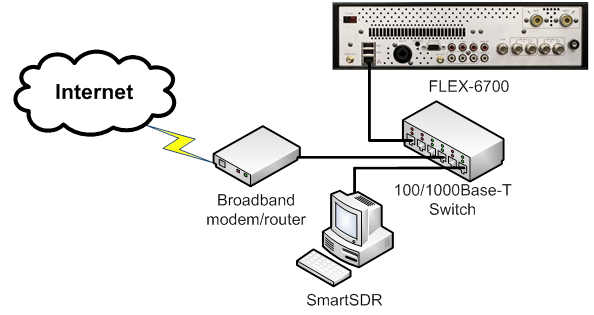
In this configuration, there are no available or “open” Ethernet ports to connect the FLEX-6000/FLEX-8000 or any other network devices to the LAN, so additional port capacity should be added by inserting an Ethernet Switch in between the broadband modem/router and the PC. The PC and FLEX-6000/FLEX-8000 on the local LAN receive an IP address automatically via the broadband modem/router by DHCP. For this configuration to work properly, DHCP must be enabled.
In the diagrams below, a FLEX-6700 is represented, but the network connection is the same for all FLEX-6000/FLEX-8000 software defined radios.
Once an Ethernet switch has been installed in the network, as shown below, the FLEX-6000/FLEX-8000 Signature Series SDR can be physically connected to the local LAN via one of the available open Ethernet switch ports. This is the preferred network configuration. Refer to the diagram below.
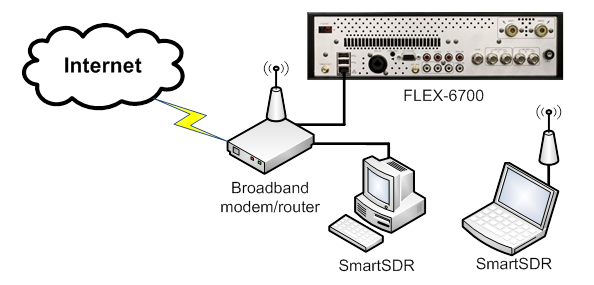
Some broadband modems/routers have multiple LAN ports and wireless capabilities for connecting multiple network devices to the LAN, eliminating the need for adding additional Ethernet ports to the LAN. With this configuration, connecting the FLEX-6000/FLEX-8000 directly to one of the open LAN ports on the multi-port broadband modem/router will allow any directly connected PCs or wireless devices to communicate with the FLEX-6000 without adding an Ethernet switch. Refer to the diagram below.
Connecting a FLEX-6000/FLEX-8000 Directly to your PC
But what about those who do not have an existing LAN, or want to use the FLEX-6000/FLEX-8000 Signature Series SDR directly connected to a PC? How is this done?
The answer is yes!
But, in this configuration, the radio does not have access to the Internet, so it can not validate new software licenses, download software updates, or operate remotely using SmartLink. The radio will only be accessible by the directly connected PC too. Using a direct network connection, an M-model radio can not download new software versions either. Connecting the radio directly to the PC is not the recommended or preferred configuration for operating your FLEX-6000/FLEX-8000.
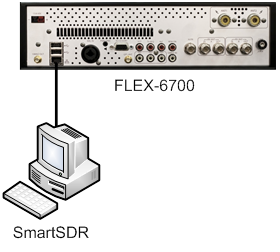
When you connect a PC and a FLEX-6000/FLEX-8000 with the supplied Ethernet cable, the FLEX-6000/FLEX-8000 will sense that it is directly connected to a PC and automatically configure its Ethernet port to communicate with it. No special Ethernet cables are needed. In this configuration, the PC and the FLEX-6000/FLEX-8000 will self-allocate a "link local" IP address, allowing them to communicate properly. However, the PC must be configured to obtain an IP address via DHCP for link-local to work properly. Refer to the diagram below.
Another frequently asked question regarding the FLEX-6000/FLEX-8000 and connecting it to a PC focuses on installing device drivers and whether they are needed. The answer is no, special third-party device drivers are required for the PC to communicate with the FLEX-6000/FLEX-8000. The FLEX-6000 uses a standard TCP/IP protocol stack that comes with all modern Windows operating systems and other network-enabled devices that may host GUI client applications in the future. So no more messing with pesky device drivers!
In conclusion, the network configurations described above are the more common types encountered when connecting your FLEX-6000/FLEX-8000 to a SmartSDR client. The key point is that FlexRadio has specifically and intentionally engineered SmartSDR to eliminate the complexity of connecting a FLEX-6000/FLEX-8000 to the network, making the setup and operation of the FLEX-6000/FLEX-8000 easy and worry-free. We have made it that simple!