
In most cases, connecting your FLEX-6000, FLEX-8000, or Aurora to your network takes nothing more than an Ethernet cable. The radio communicates with SmartSDR (or another client application) over a standard Ethernet local area network (LAN) using the same IP protocols as the Internet, so if you have broadband at your QTH, your existing network is probably already compatible. Most radios connect and operate with no manual configuration.
The setup that works best is an Ethernet switch on your home network. The other options are covered below.
Which Setup Is Right for Me?
| If this describes you... | Use this setup | Internet access, updates, and SmartLink |
|---|---|---|
| Your modem/router has only one LAN port, and your PC is already using it. | Add an Ethernet switch (recommended) | Yes |
| You already have an Ethernet switch on your network. | Connect the radio to an open switch port (recommended) | Yes |
| Your modem/router has several LAN ports, and at least one is open. | Connect the radio to an open router port | Yes |
| You have no network, or want to connect the radio to a single PC only. | Direct connection to a PC (not recommended) | No |
Recommended: Connect the Radio Through an Ethernet Switch
This is the preferred configuration for operating your radio. It gives the radio full access to your network and the Internet, which is required for license validation, software updates, and remote operation with SmartLink.
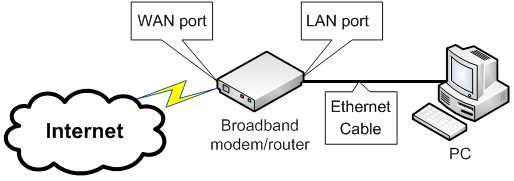
Why a switch? In the simplest home setup, a broadband modem/router has one connection to the Internet (the wide area network, or WAN, port) and one LAN Ethernet port connected to your PC. That leaves no open port for the radio. An inexpensive Ethernet switch solves this by adding more ports. And a dedicated Ethernet switch will generally perform better than connecting it directly to your router.
To set it up:
- Connect the broadband modem/router's LAN port to an Ethernet switch.
- Connect your PC to an open port on the switch.
- Connect the radio to another open port on the switch.
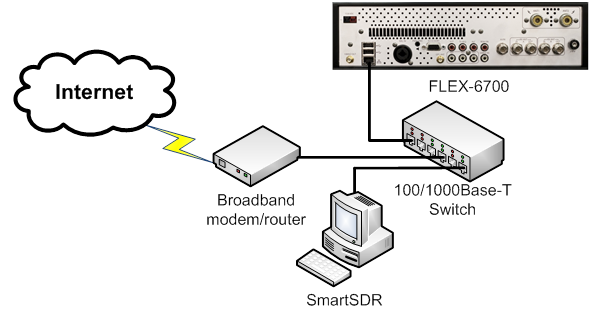
The PC and the radio each receive an IP address automatically from the modem/router via DHCP, so DHCP must be enabled on your router. It is enabled by default on most routers. A FLEX-6700 appears in the diagrams, but the connection is the same for every radio model.
Alternative: Use an Open Port on a Multi-Port Router
If your modem/router already has multiple LAN ports, or built-in wireless, you may not need a switch. Plug the radio directly into an open LAN port on the router. Any PC or wireless device on that network can then communicate with the radio.
Using Wi-Fi
The radio itself connects to your network with an Ethernet cable, using either the switch or router setup above. Your PC or other client device, however, can connect to the same router over Wi-Fi. Once the radio is wired to the router (or to a switch connected to the router) and your device is on that router's wireless network, the two can communicate just as they would over a wired connection, and the radio keeps full Internet access for licensing, updates, and SmartLink.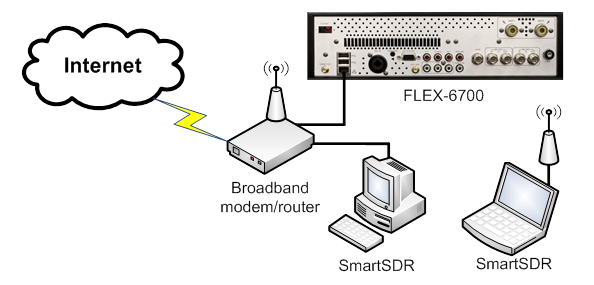
For the best results, use a wired connection for your PC whenever possible. If you need to use Wi-Fi, connect to the 5 GHz or 6 GHz band if your router and device support it. These bands are typically less crowded than 2.4 GHz and offer better throughput.
Not Recommended: Connect the Radio Directly to a PC
If you don't have a LAN, or prefer not to use one, you can connect the radio directly to a PC with the supplied Ethernet cable. The radio detects the direct connection and configures its Ethernet port automatically, and no special cable is required. The radio and PC assign themselves "link-local" IP addresses so they can communicate. For this to work, the PC must be set to obtain its IP address via DHCP.
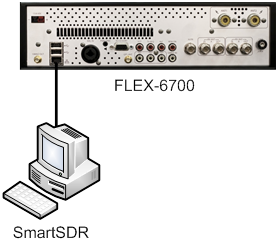
This setup has significant limitations:
- The radio has no Internet access, so it cannot validate new software licenses or download software updates.
- SmartLink remote operation is not available.
- M-model radios cannot download new software versions.
- Only the directly connected PC can communicate with the radio.
For these reasons, we recommend the switch or router configurations above for everyday operation.
Do I Need to Install Drivers?
No. Your PC communicates with the radio over the standard TCP/IP stack built into modern versions of Windows and other network-enabled devices, so no special third-party drivers are required.
Summary
For the best experience, connect your radio to your LAN through an Ethernet switch, or through an open port on a multi-port router. SmartSDR was designed to keep networking simple, and for most customers, setup is plug and play.