
Experience has shown that Windows does not always correctly identify or enumerate existing serial (COM) ports on a PC, particularly when some of those ports are virtual. In these cases, Windows may incorrectly assign a COM port that is already in use to a new device.
For example, the FlexControl may be dynamically assigned a COM port number that is already being used by another program or device—such as SmartSDR CAT. When this happens, a COM port conflict occurs, and neither the FlexControl nor the other program/device assigned to that port will function properly.
To prevent this problem, we recommend manually assigning the FlexControl to a high-numbered COM port. Doing so minimizes the chance of Windows reusing that port number and helps avoid future conflicts.
It is also important to understand how Windows assigns USB COM ports. Each USB port on your PC is treated as a unique connection. This means that if you plug the FlexControl into one USB port, it will be assigned a specific COM port number. If you later connect it to a different USB port, Windows will treat it as a new device and assign a different COM port number.
For this reason, to ensure consistent operation, you should always connect the FlexControl to the same USB port once you have assigned it a fixed COM port number.
Procedure for manually assigning a FlexControl com port number
1.) If SmartSDR for Windows is running, close it.
2.) Make sure the FlexControl is connected to your computer.
3.) Open up the Windows Device Manager. For assistance, please refer to the Open Device Manager "how-to" from Microsoft.
4.) Find the FlexControl under the Com Ports. See the image below.
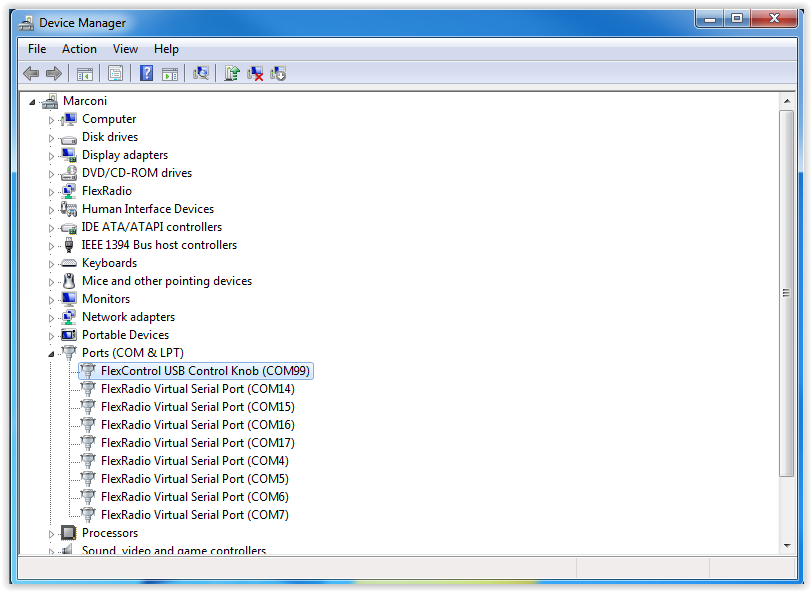
5.) Right-click on the FlexControl USB Control Knob and open the Properties menu.
6.) Click on the Port Settings tab.
7.) Click on the Advanced option. See the image below.
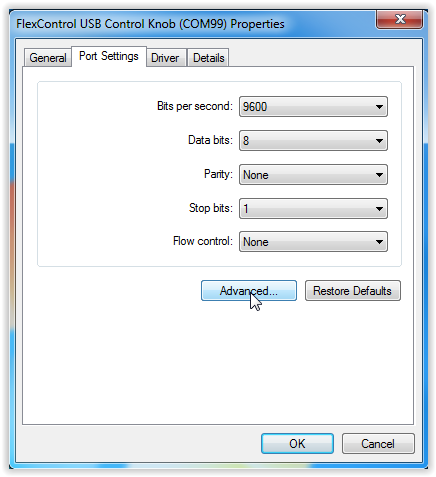
8.) Click on the Com Port Number drop-down box and select a higher value You can use any value between 1 and 254. We recommend using port numbers 240 to 250. See the image below.
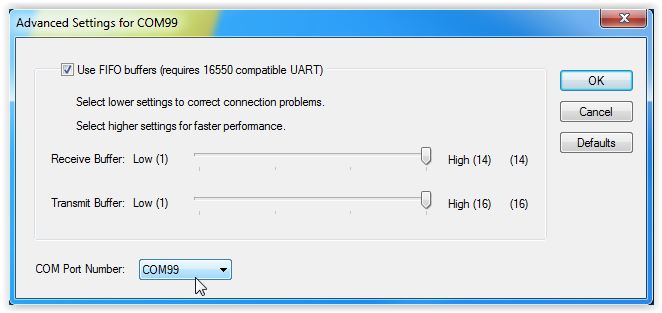
9.) Click on OK two times until you get back to the Windows Device Manager.
10.) Close Windows Device Manager
11.) Reboot your computer.