
Applies to: FLEX-6000 Series, FLEX-8000 Series, and Aurora radios
License: SmartSDR+ (Early Access feature, v4.3)
Clients: SmartSDR for Windows, Maestro, and M-Models
Overview
Auto AGC-T sets the AGC Threshold (AGC-T) for a Slice automatically. It continuously measures the noise floor adjacent to the Slice and sets the threshold from that measurement.
AGC-T is one of the most valuable receiver adjustments available, and until now it required manual attention. Auto AGC-T keeps the threshold well set as you change bands and antennas, and as band noise changes through the day.
- Auto AGC-T is off by default, so AGC-T stays manual until you turn it on.
- It is applied per Slice, so you can leave one Slice on automatic while setting another by hand.
Note: This feature is only available when using phone modes. For all other modes, it is disabled.
Enabling Auto AGC-T in SmartSDR for Windows
You can enable Auto AGC-T from either of two places. Both controls sit immediately to the right of the AGC-T slider.
From the Slice menu
- Open the Slice menu and select the Audio pull-down menu tab by clicking on the speaker icon (highlighted in the image below).
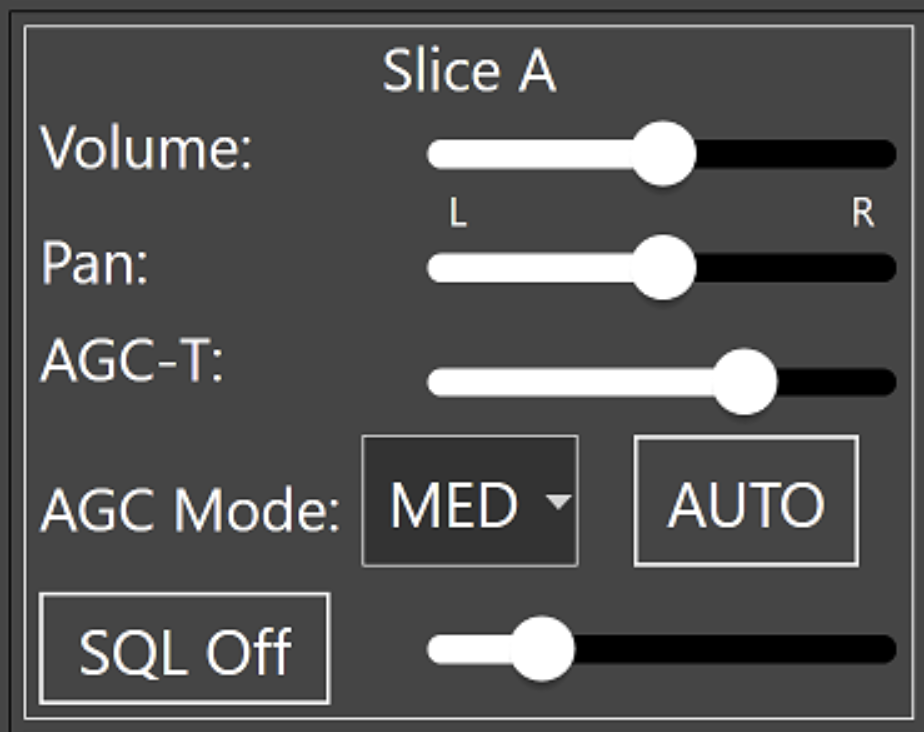
- Click the Auto Button to the right of the AGC-T Slider.
From the Radio panel
- In the Radio Controls panel "RX" window for the active Slice, click the square button labeled "A" to the right of the AGC-T Slider.
Enabling Auto AGC-T in Maestro and M-Models
- Navigate to Menu > Audio > Slice.
- Touch Auto to the right of the AGC Mode selector.
How Auto AGC-T Behaves
Auto AGC-T works from a long-term average of the noise floor next to the Slice, measured where no signals are present, and sets the threshold for the best signal-to-noise ratio. It ignores short-term transients such as lightning crashes, so the threshold holds steady through ordinary band noise.
In practice, the threshold moves only when something meaningful changes, such as:
- A band change or another large frequency move
- A sustained rise or fall in the noise floor, for example as a band opens or during a solar event
The AGC mode selector remains available while Auto is enabled.
Returning to Manual Control
Adjusting the AGC-T level by hand turns Auto off and returns control to you. To go back to automatic control, click or touch the same Auto (or A) button again.