
Applies to: All models, except where noted
License: On/off buttons and level sliders: SmartSDR Basic. Advanced parameters: SmartSDR+ (v4.3)
Clients: SmartSDR for Windows, Maestro, and M-Models
Overview
The SmartSDR noise mitigation algorithms (listed in the client’s Unlocked Features as Advanced Noise Mitigation) are now controlled from a dedicated DSP Controls Panel. Controls are organized in two tiers:
| Tier | What it includes | License required |
|---|---|---|
| DSP Controls Panel | An on/off button for each algorithm and, for most algorithms, a level slider | SmartSDR Basic |
| Advanced settings | Additional per-algorithm parameters, opened from the panel’s Advanced button | SmartSDR+ |
The rule is the same for every algorithm: on/off buttons and level sliders are available to all users, and every parameter beyond those requires SmartSDR+. This includes the advanced parameters for NR and ANF, even though those algorithms themselves are available with SmartSDR Basic.
These controls enhance the algorithms delivered in SmartSDR v4.0.1. Any radio that received those algorithms also receives the expanded controls, including radios whose SmartSDR+ license has since expired.
Opening the DSP Controls Panel in SmartSDR for Windows
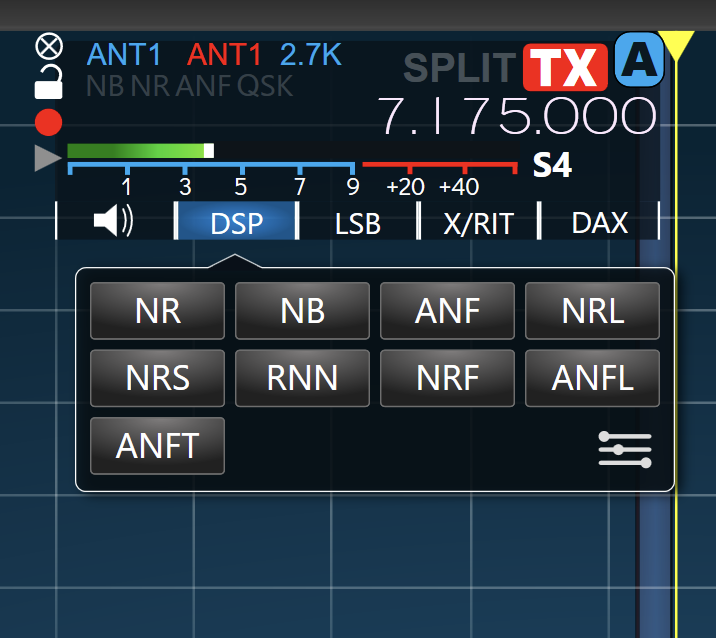
- Open the Slice menu and select the DSP tab.
- Click the DSP Controls Panel icon (shown as a slider).
Opening the DSP Controls Panel in Maestro and M-Models
- Open the Slice Menu.
- Touch the slider icon pinned to the right edge of the menu.
The DSP Controls overlay applies to the Slice whose menu you opened. The slider icon is hidden in FM modes.
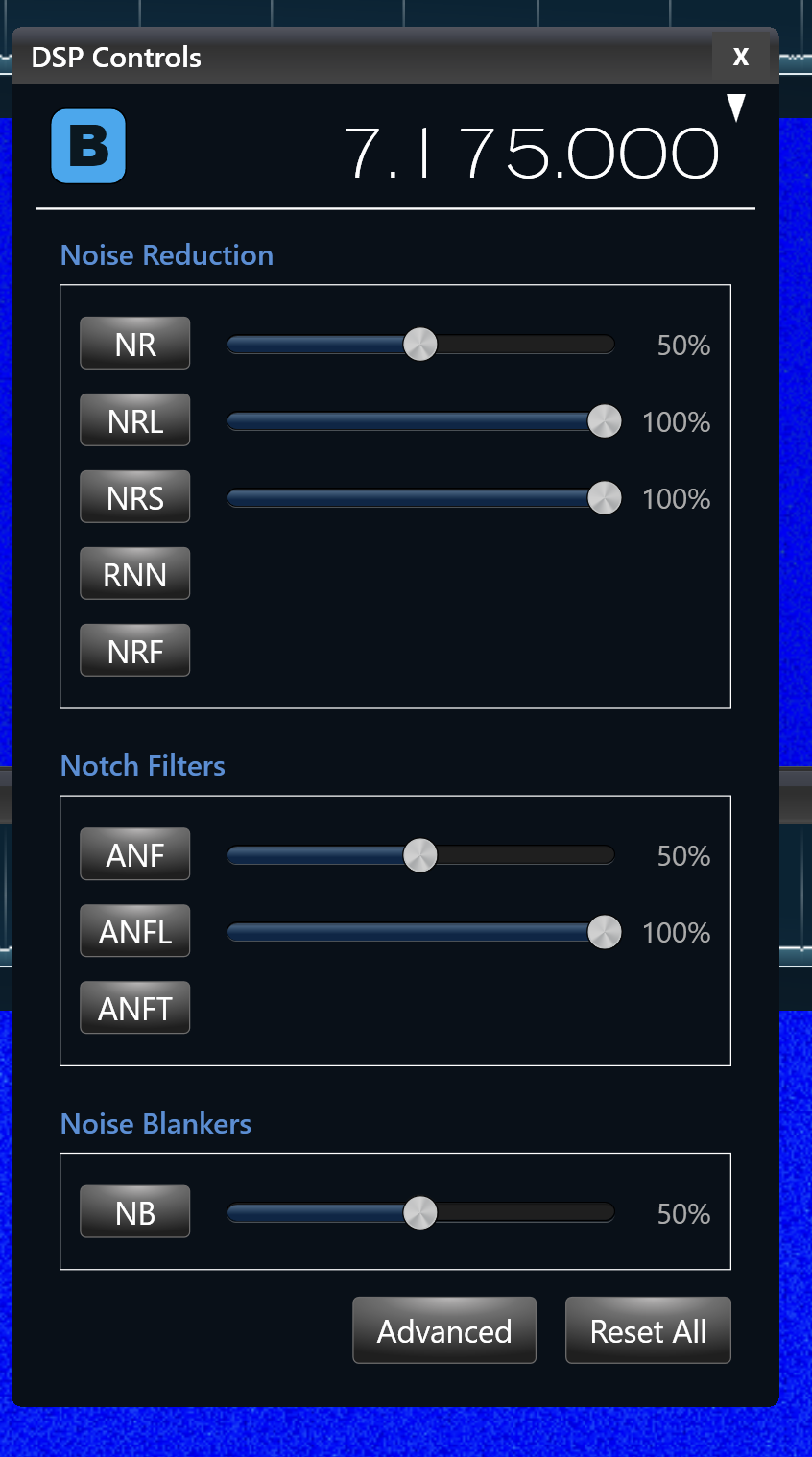
DSP Controls Panel Reference
The controls shown vary by mode, radio model, and license.
| Control | Description |
|---|---|
| Slice | (SmartSDR for Windows only) Selects the Slice the DSP controls apply to. On Maestro and M-Models, the overlay applies to the Slice whose menu is open. |
| Algorithm buttons | Turn each noise mitigation algorithm on and off. A button is blue when its algorithm is enabled. |
| Level sliders | Adjust the intensity of algorithms that have one. RNN, NRF, and ANFT are on/off only and have no level slider. |
| Advanced | Opens the Advanced settings menu. |
| Reset All | Returns every DSP block’s parameters to defaults for the selected Slice, including NB and APF levels. Does not change any algorithm’s on/off state. |
| Close | SmartSDR for Windows: click X. Maestro and M-Models: touch < Back to return to the Slice menu. |
Using the Advanced Settings Menu
- In the DSP Controls Panel, select Advanced.
- Select the tab for the algorithm you want to adjust: NR, NRL, NRF, ANF, ANFL, or ANFT.
- Adjust the parameters (see the algorithm reference below).
- To return an algorithm to its defaults, select Reset on its tab.
- Select Back to return to the DSP Controls Panel, or close the menu (X on Windows, < Back on Maestro and M-Models).
NRS, RNN, NB, and APF have no advanced parameters and no tab. In SmartSDR for Windows, a Slice drop-down selects the Slice that the advanced settings apply to. The controls shown vary by mode, radio model, and license.
Which Algorithms Appear in Each Mode
The panel shows only the algorithms that apply to the current mode.
| Algorithm(s) | Where they appear |
|---|---|
| ANF, ANFL, ANFT | Default modes only. Hidden in CW, RTTY, DIGU, DIGL, FDVU, and FDVL. |
| APF | CW only, where it takes the place of ANF. |
| RNN | Hidden in CW and in the FM modes. |
| NR, NRL, NRS, NRF, NB | Hidden in FM, NFM, DFM, and DSTR. |
In FM modes, SmartSDR for Windows covers the panel with a message stating that DSP controls do not apply to that mode. On Maestro and M-Models, the slider icon that opens the overlay is hidden instead.
WNB remains in the Antenna menus and is not part of the DSP Controls Panel.
DSP Algorithm Reference
Noise Reduction
NR — Noise Reduction
Continuously measures the noise level across the audio spectrum and subtracts that noise profile from the received signal. Most effective against steady broadband interference such as band noise or atmospheric static.
| Parameter | Description | Range | Default |
|---|---|---|---|
| Enable | Mitigates random or uncorrelated noise from the receiver audio. | On / Off | Off |
| Level | How aggressively NR behaves (0 = least, 100 = most). | 0 to 100 | 50 |
| Delay (Advanced) | Samples separating the input signal from the reference signal. Tones stay correlated across this gap while noise does not, which is how the two are told apart. | 1 to 512 | 25 |
| Window (Advanced) | How much of each received signal is analyzed, in samples. Higher values give finer tone discrimination but slower adaptation. | 32, 64, 128, 256, 512 | 256 |
| Adapt Mode (Advanced) | Fast, slow, or automatic power estimation. Auto is recommended. | Auto, Fast, Slow | Auto |
| Inverse (Advanced) | Which part of the signal is reconstructed after processing: One (the first part) or N/2 (the middle). N/2 preserves signal amplitude. | One, N/2 | N/2 |
NRL — LMS Noise Reduction
Learns the noise signature of the received signal over time and continuously adapts to cancel it. Works well on structured, correlated interference that repeats predictably.
| Parameter | Description | Range | Default |
|---|---|---|---|
| Enable | Mitigates random noise with a least mean squares filter. | On / Off | Off |
| Level | How quickly the algorithm chases the signal each sample. Higher values converge faster but risk instability on rapidly changing signals. | 0 to 100 | 100 |
| Delay (Advanced) | Samples separating the desired signal from the whole signal being processed. Periodic tones stay correlated across this gap while random noise does not. | 1 to 512 | 16 |
| Taps (Advanced) | Number of adaptive filter coefficients. More taps model more complex signals but increase convergence time. | 1 to 512 | 128 |
| Leakage (Advanced) | How quickly older signals are forgotten. Higher values forget faster, trading stability for responsiveness. | 0 to 100 | 50 |
NRF — Noise Reduction with Filter
FLEX-8000 Series and Aurora radios only.
Estimates how loud the noise is relative to the signal at each frequency independently, then applies exactly as much suppression as each frequency needs. Generally produces less musical noise than other noise reduction approaches.
| Parameter | Description | Range | Default |
|---|---|---|---|
| Enable | Mitigates random noise by maintaining a dynamic filter for the passband. NRF has no level slider. | On / Off | Off |
| Window (Advanced) | Number of frequency bins. More bins give finer per-frequency noise discrimination but increase latency. | 512, 1024, 2048, 4096, 8192 | 2048 |
NRS — Speex Noise Reduction
FLEX-8000 Series and Aurora radios only.
Uses the Speex audio library’s noise suppressor, which reacts to a changing noise environment and filters it out using perception-tuned processing. Designed primarily for voice clarity. NRS has no advanced parameters.
| Parameter | Description | Range | Default |
|---|---|---|---|
| Enable | Mitigates random noise using processing from the Speex audio library. | On / Off | Off |
| Level | Strength of the Speex algorithm. Higher values request more aggressive noise reduction. | 0 to 50 | 50 |
Note: SmartSDR for Windows displays the NRS level as a percentage at twice the underlying value, so the slider reads 0 to 100% and the default reads 100%. Maestro and M-Models show no number.
RNN — Recurrent Neural Network
FLEX-8000 Series and Aurora radios only.
Uses a trained neural network to distinguish signal from noise and apply targeted suppression. Delivers the most aggressive broadband noise reduction and is particularly effective for SSB voice and weak-signal modes.
| Parameter | Description | Range | Default |
|---|---|---|---|
| Enable | Mitigates random noise using a neural network. RNN is on/off only, with no level slider and no advanced parameters. | On / Off | Off |
Noise Blanker
NB — Noise Blanker
Reduces fast rise-time noise from sparks and other pulse-type sources. NB is available to all license tiers and has no advanced parameters. In SmartSDR for Windows, NB has its own Noise Blankers section in the panel; on Maestro and M-Models, it sits in the top row.
| Parameter | Description | Range | Default |
|---|---|---|---|
| Enable | Turns the noise blanker on and off. | On / Off | Off |
| Level | Intensity of the noise blanker. | 0 to 100 | 50 |
Notch Filters
ANF — Auto Notch Filter
Watches the audio spectrum for signals that stay fixed at a single frequency and cancels them in real time. Best for eliminating stationary carriers and heterodynes without affecting the surrounding audio.
| Parameter | Description | Range | Default |
|---|---|---|---|
| Enable | Mitigates tones such as carriers and heterodynes from the receiver audio. | On / Off | Off |
| Level | How aggressively ANF behaves (0 = least, 100 = most). | 0 to 100 | 50 |
| Delay (Advanced) | Samples separating the input signal from the reference signal. Tones stay correlated across this gap while noise does not. | 1 to 512 | 25 |
| Window (Advanced) | How much of each received signal is analyzed, in samples. Higher values give finer tone discrimination but slower tone mitigation. | 32, 64, 128, 256, 512 | 256 |
| Adapt Mode (Advanced) | Fast, slow, or automatic power estimation. Auto is recommended. | Auto, Fast, Slow | Auto |
| Inverse (Advanced) | Which part of the signal is reconstructed after processing: One (the first part) or N/2 (the middle). N/2 preserves signal amplitude. | One, N/2 | N/2 |
ANFL — LMS Auto Notch Filter
Learns to identify and null out narrowband tones by finding and minimizing interference energy at specific frequencies.
| Parameter | Description | Range | Default |
|---|---|---|---|
| Enable | Suppresses persistent, unwanted tones using a least mean squares filter. | On / Off | Off |
| Level | How quickly the algorithm chases the signal each sample. Higher values converge faster but risk instability on rapidly changing signals. | 0 to 100 | 100 |
| Delay (Advanced) | Samples separating the desired signal from the whole signal being processed. Periodic tones stay correlated across this gap while random noise does not. | 1 to 512 | 16 |
| Taps (Advanced) | Number of adaptive filter coefficients. More taps mitigate more complex noise but increase convergence time. | 1 to 512 | 128 |
| Leakage (Advanced) | How quickly older signals are forgotten. Lower values are recommended for ANFL so persistent tones do not return. | 0 to 100 | 0 |
ANFT — Auto Notch Filter with FFT
Scans the frequency spectrum for persistent tones above a configurable threshold and removes them with precision narrowband filters. Effective against multiple simultaneous carriers, birdies, and narrowband interference.
| Parameter | Description | Range | Default |
|---|---|---|---|
| Enable | Suppresses persistent, unwanted tones by tracking specific noisy frequencies. ANFT has no level slider. | On / Off | Off |
| Tone Min (Advanced) | The power floor a tone must reach to be considered for blocking. Lower values detect weaker tones; higher values ignore them. | -150 to -50 | -110 |
| Tone Diff (Advanced) | How far above the average power of its surroundings, in dB, a tone must be to qualify. Higher values catch only sharply isolated tones; lower values also catch tones only modestly above the noise floor. | 1 to 60 | 12 |
APF — Audio Peak Filter
A narrow peak filter centered on the receive frequency, used to enhance CW tone clarity. APF appears in CW only, where it takes the place of ANF in the panel. It has no advanced parameters.
| Parameter | Description | Range | Default |
|---|---|---|---|
| Enable | Turns the audio peaking filter on and off. | On / Off | Off |
| Level | Intensity of the peak filter. Higher levels produce a narrower, higher peak at the pitch frequency. | 0 to 100 | 30 |